


Dual App - Web Scanner App
4.6839.00 Reviews
App Specs
- Version
- 1.6.3
- Updated On
- License
- Free
- Downloads
- 10,000,000+
- Developer
- 360 Tool
- Categories
- Communication
- Platform
- Android, iOS
Screenshots
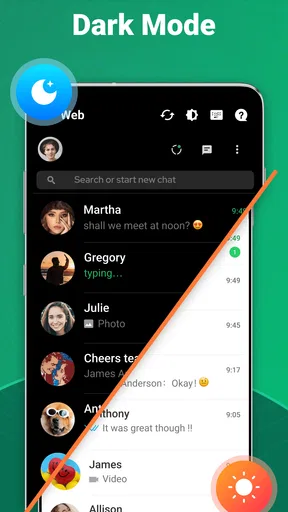
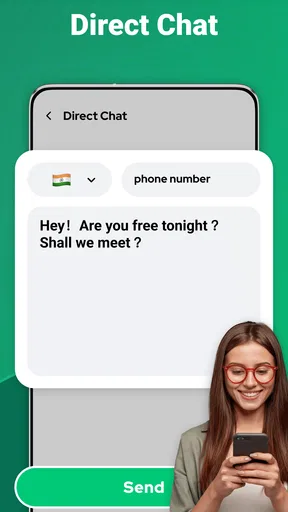
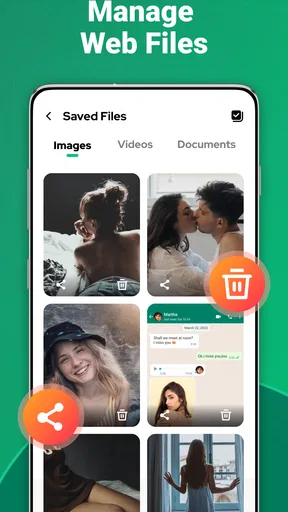
 Analysis by AppCompare
For a household sharing a tablet or phone, separating accounts can sound easier than repeatedly signing out and back in. I see the appeal of Dual App - Web Scanner App most clearly when one person needs to keep a personal account apart from a work or community account on the same device. That convenience comes with a practical caveat: a second app session is not the same thing as a separate device or a family-management system, so it helps to decide whose accounts and information belong in each space before getting started.
When two accounts solve a real household problem
A useful example is a parent who uses one social account for personal conversations and another for a small business, while occasionally letting a family member use the phone to scan a code. Keeping account sessions distinct can make routine switching less awkward than signing in and out every time. I would still treat the phone itself as shared territory: the app may help with account separation, but it does not replace a device passcode, a conversation about who may use the phone, or the account’s own privacy settings.
This distinction matters if a second person expects their account to be private just because it appears in a separate app instance. I would explain clearly which profile is being used and avoid leaving sensitive conversations open when handing over the device. For a household that needs independent logins on a shared screen, the app can be convenient; for people who need separate storage, parental controls, or strict user-level boundaries, a separate operating-system profile or another device may be a better fit.
Make account boundaries before adding a second session
Before cloning anything, I would check whether the service already supports multiple profiles or quick account switching. Some apps handle that neatly within a single installation, and that approach may be simpler if the accounts are used by the same person. A separate dual-app route is more relevant when built-in switching is inconvenient, but it also creates another place to check for messages, notifications, and sign-in prompts.
My practical tip is to label the purpose of each session in a way you will recognize at a glance, using whatever naming or visual cues the phone and app provide. Then sign into one account at a time and verify that you are in the intended profile before sending a message or posting. That small pause is especially useful on a shared device, where a quick tap can otherwise send something from the wrong identity.
I would also avoid treating the second instance as a backup. If access to an account matters, keep its recovery details current through the service itself and know how to sign in again if a session expires. A dual-app utility can make parallel use easier, but it cannot guarantee that a third-party service will preserve a login or behave identically in both instances.
Coordination matters more than the cloning button
In everyday use, the most helpful household habit is agreeing on who checks which account and when. For example, if one person handles customer messages during the day and another borrows the phone after work, a quick handoff can prevent confusion about which profile is active. That is a simple routine rather than a feature of the app, but it addresses the main risk of sharing a device: someone may interact with the wrong account without noticing.
Worth Reading Before You Choose

Flipboard Shows What News Apps Must Do Beyond the Feed

Switching to Android Auto Means Rethinking Your Driving Routine

Google Calendar Makes a Crowded Week Easier to Manage

Ludo King Makes the Most of the Minutes Between Plans

Baby Panda World Brings Quick Play to Modern Phones, but Its Game Library Feels Busy

ESPN’s Live Game View Makes Following Close Games Easier
Notifications can also complicate shared use. A second account may make it easier to keep two sessions available, but alerts from both can appear on the same phone. I would review notification settings inside each service and on the device, especially if message previews could reveal private details on a lock screen. The right balance depends on the household: visible alerts help the person responsible for an account respond promptly, while quieter previews are better when several people handle the phone.
Age and trust need a separate conversation
The app is rated for Everyone, but that age label is not a substitute for deciding whether a child should use a particular social or messaging account. The services opened through a dual-app tool have their own rules and privacy choices. I would check those directly and keep the child’s access appropriate to the service, rather than assuming that a second app session makes an account safer.
For adults sharing a device, trust and clear expectations matter just as much. A second session can reduce the temptation to log out of one account and accidentally disrupt another person’s access, but it does not make account activity invisible or establish who is responsible for replies. I would use it only where everyone understands which account is theirs and agrees on how the phone is shared.
In short, the best household fit is a small one: people who share a device by necessity, need two account sessions, and are comfortable coordinating access. It is less suitable where privacy depends on keeping users fully separate, or where a parent expects built-in supervision tools. For those needs, device-level controls and separate profiles are more appropriate than relying on a dual-app utility.
Have you ever found yourself juggling between two different accounts on the same app and wished there was an easier way? Well, I recently stumbled upon the Dual App - Web Scanner App, and it’s been a total game-changer for me. Let me walk you through my experience with it!
What is Dual App - Web Scanner App?
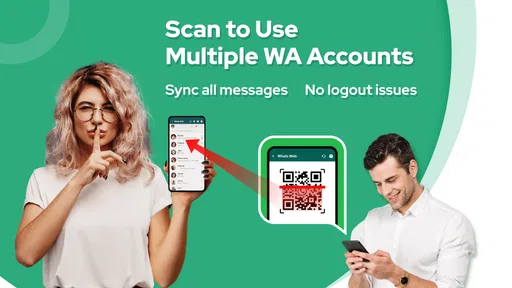
The Dual App - Web Scanner App is a nifty tool designed for those of us who need to manage multiple accounts on our smartphones. Whether it’s balancing personal and work accounts on social media or keeping track of two WhatsApp profiles, this app has you covered. But, that's not all. It also comes with a built-in web scanner feature that adds a touch of extra utility.
Setting It Up
Getting started with the app is pretty straightforward. After downloading and installing it from the Play Store or App Store, you're greeted with a clean and intuitive interface. The app doesn’t bombard you with too many options right off the bat, which I appreciated. You just select the app you want to clone, and voilà, you have a second version ready to go!
The process is remarkably smooth, and the app guides you through each step. It’s almost like having a tech-savvy friend walking you through the setup, ensuring you don’t miss a beat.
Using the Dual Feature
Once you’ve got your apps cloned, using them is seamless. Switching between accounts is as easy as tapping a button. I’ve been using it to manage my personal and business Instagram accounts, and it's been a lifesaver. No more logging out and back in every time I want to switch accounts. It’s like having a dual-SIM phone, but for apps!
Plus, the app runs smoothly without any noticeable lags or crashes. I was initially worried about the impact on battery life, but surprisingly, it doesn’t drain the battery any more than usual. It’s efficient, and I love that!
The Web Scanner Feature
Now, let’s talk about the web scanner feature. At first, I was skeptical about how useful this would be, but it’s a neat addition. The scanner is quick and accurate, making it perfect for scanning QR codes or documents on the go. It’s like having a mini office in your pocket.
I’ve used it to scan receipts and important documents, which it handles perfectly. It saves them in high quality, and sharing them is super easy. It also supports a variety of formats, which is a bonus.
User Experience and Interface
The user interface is user-friendly and aesthetically pleasing. It’s not cluttered, which makes navigation a breeze. The app doesn’t try to overcomplicate things; it sticks to its core functions and does them well.
One thing I particularly like is the app’s attention to privacy. It doesn’t require a bunch of unnecessary permissions, which can be a red flag with some apps. Your data feels secure, and that’s always a plus in my book.
What to expect from the dual-account workflow
The practical advantage over repeatedly logging in and out is less about speed in a single moment and more about avoiding interruptions across a day. If I need to answer a work message, then check a personal conversation, keeping both sessions available can reduce the chance that I forget to switch back. Compared with an app’s built-in account switcher, a cloned instance may feel more direct, but it also means two app icons and two places where alerts or sign-in issues can arise.
There is a useful exception: if the service already keeps multiple accounts active and makes switching obvious, its native option is usually the cleaner choice. I would reserve a dual-app tool for services where the normal switching flow is cumbersome or where keeping separate sessions open genuinely helps. It is not automatically better just because it offers another copy of an app.
One small workflow improvement is to test the second account with a low-stakes action first. Open the instance, confirm the profile name or avatar, and check that a harmless draft or message is associated with the right account before relying on it for time-sensitive work. This is more valuable than assuming the two copies behave identically, since the underlying service still controls how its accounts and sessions work.
Scanner use is handy, but know the task
The scanner can earn its place even for someone who rarely needs two accounts. A realistic day might involve receiving a paper receipt after a purchase, scanning it while away from a desk, and sharing the resulting file with a colleague or keeping it for later. For a quick QR scan, having a scanner available on the same phone can be more convenient than searching for another utility.
For documents that need careful filing, though, I would treat a phone scan as a convenient capture step rather than a complete records system. Check the result before sending it: make sure the whole page is visible, text is readable, and private details are not included by accident. A scanner’s convenience does not remove the need to choose a safe destination or verify what is being shared.
There is also a trade-off in using one app for both account duplication and scanning. It keeps related tasks together, but someone who only wants high-control document organization may prefer a dedicated scanning app with a workflow tailored to naming and sorting files. Likewise, a person who never scans anything may find the extra feature irrelevant and should judge the app mainly by whether its second-session approach works for their services.
Compatibility, cost, and practical expectations
Dual App - Web Scanner App is a free communication app from 360 Tool, with optional in-app purchases ranging from $1.99 to $59.99 per item. Its current version is 1.5.9, and it requires Android 6.0 or later. That makes the Android requirement worth checking before installing, particularly on an older phone. The app has a 4.5 average from around 202,000 ratings and more than 10 million installs, which suggests broad use, though popularity alone cannot tell you whether it will suit your exact combination of phone and third-party apps.
The age rating is Everyone. I would still distinguish that rating from the age rules of any social or messaging service you open through it. The app is free to start, but the presence of optional purchases means I would review any purchase screen carefully and decide whether the basic workflow already meets my needs before paying for extras.
One common question is whether every app can be duplicated and whether every second session will work exactly like the original. I would not plan around either assumption: third-party apps can handle parallel sessions differently, and their own login checks or updates may affect the experience. Try the specific service you care about before moving an important work routine onto it, and keep the original app available until the second session has proved dependable.
Another sensible question is whether notifications and account data stay separate. The practical answer is to check each service’s notification and privacy settings rather than assuming the cloning tool creates a private boundary. On a shared phone, review message previews, lock-screen visibility, and which account is currently open before handing the device to someone else. That modest check prevents more trouble than relying on the app icon alone.
Who should choose it—and who should skip it
I would recommend trying it if you personally manage two accounts on the same service, dislike repeated sign-outs, and want a scanner available for occasional QR codes or paper documents. It is especially appealing for a small business owner, volunteer, or household member who already uses one phone for separate roles and can keep those roles clearly labeled.
I would skip it if your priority is strong separation between different people, supervised child accounts, or a carefully organized document archive. A second app instance is a convenience, not a complete privacy or family-control solution. Native account switching is often preferable when it already works well; separate device profiles or devices are a better answer when people need firmer boundaries.
Before committing, I would try one nonessential account, check that notifications arrive as expected, and scan a sample page to see whether the output suits the task. That quick trial answers the questions that matter in daily use: whether the particular service accepts a parallel session, whether the second icon is easy to recognize, and whether the scanner’s results are clear enough for your needs.
Final Thoughts
Overall, the Dual App - Web Scanner App is a versatile tool for anyone who needs to manage multiple accounts or requires an efficient web scanner on their phone. It’s well-designed, easy to use, and delivers exactly what it promises.
If you’re tired of the hassle of switching between accounts or need a reliable scanner, I’d definitely recommend giving this app a try. It’s like having a personal assistant right in your smartphone, ready to make your life just a little bit easier.
So, head over to your app store, download it, and see for yourself how it can simplify your day-to-day tasks. Trust me, you won’t be disappointed!
Pros
- Seamlessly scans documents to PDF.
- Supports dual app usage efficiently.
- User-friendly interface design.
- Fast document processing speed.
- Secure data storage options.
Cons
- Occasional ads can be disruptive.
- Limited free version features.
- Requires stable internet for sync.
- Occasional bugs in dual mode.
- May drain battery quickly.
FAQs for Dual App - Web Scanner App
What is Dual App - Web Scanner App and how does it work?
Dual App - Web Scanner App is a versatile tool designed to allow users to scan web pages and create dual accounts for popular apps on a single device. It works by providing a secure environment where you can clone applications and manage multiple accounts seamlessly. This is particularly useful for social media, messaging apps, and more.
Is Dual App - Web Scanner App secure to use?
Yes, Dual App - Web Scanner App is designed with user privacy and security in mind. It uses advanced encryption to ensure that your data and cloned apps remain secure. However, users should exercise caution and ensure that they download the app from a trusted source to avoid any security risks.
Can I use Dual App - Web Scanner App for free?
Dual App - Web Scanner App offers a free version with basic features. For users who require more advanced functionalities, such as ad-free usage or additional app cloning options, there is a premium version available as an in-app purchase. This allows flexibility depending on your needs.
Which platforms are supported by Dual App - Web Scanner App?
Dual App - Web Scanner App is available for both Android and iOS platforms. It is optimized to run smoothly across a wide range of devices, ensuring a user-friendly experience regardless of the operating system. Make sure your device meets the minimum requirements for the best performance.
What are the main features of Dual App - Web Scanner App?
The app offers a range of features including the ability to clone applications, scan web pages for information, and manage multiple accounts simultaneously. It also provides a user-friendly interface, secure data handling, and customizable settings to enhance user experience. These features make it a versatile tool for personal and professional use.


